
Canon printer not printing fix steps can help when your Canon printer is connected but will not print, prints blank pages, gets stuck in the queue, or stops responding from your computer or phone.
This problem can happen because of an offline printer status, a weak WiFi connection, stuck print jobs, empty ink cartridges, clogged printheads, wrong printer selection, outdated drivers, or a temporary printer error.
Start with the quick checks below before reinstalling the printer or changing advanced settings.
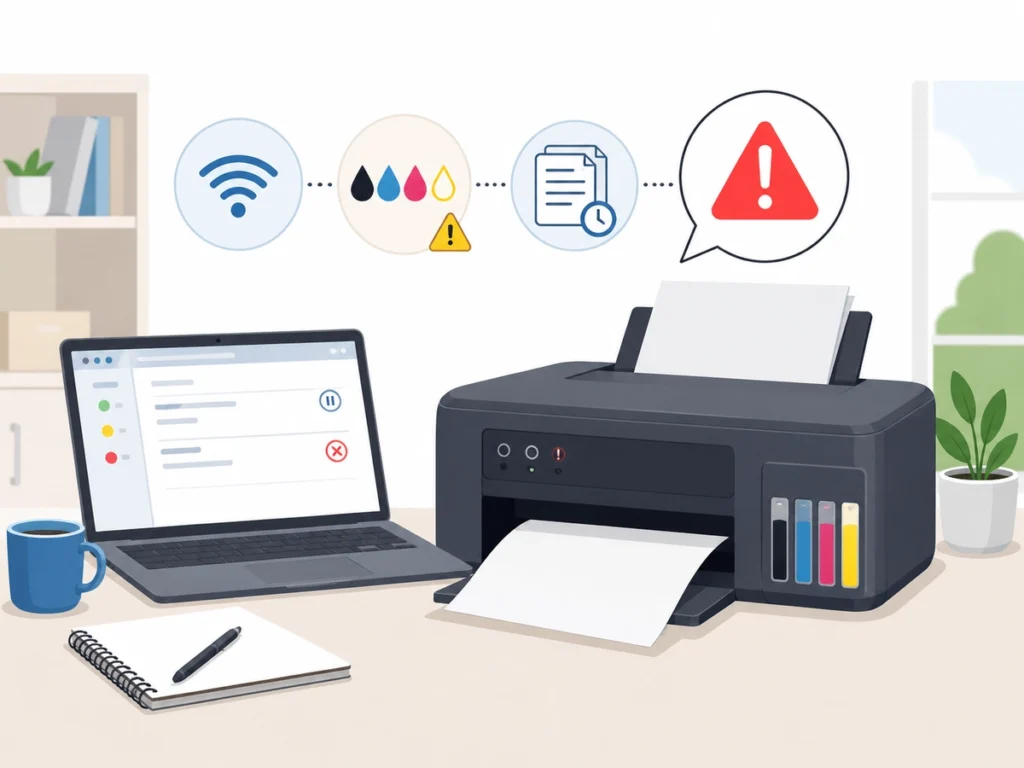
Quick Fix
Restart your Canon printer, restart your computer, check that the printer has paper and ink, then cancel any stuck print jobs. Make sure the correct Canon printer is selected and try printing again.
Try This First
• Printer shows offline → check the printer connection and set it online
• Print job is stuck → clear the print queue and try again
• Printer prints blank pages → check ink levels and run a nozzle check
• Wireless printer will not print → reconnect the printer to WiFi
• Error code appears → check the exact Canon error message before replacing parts
Why Is My Canon Printer Not Printing?
A Canon printer may stop printing when the computer cannot communicate with the printer, the printer is offline, the print queue is stuck, or the printer cannot feed ink or paper correctly.
In many cases, the printer is not broken. The issue is usually caused by a connection problem, driver problem, wrong printer setting, or a temporary error that can be cleared with basic troubleshooting.
What Causes Canon Printer Printing Problems?
Common causes include:
• Canon printer set to offline
• stuck print jobs in the queue
• wrong printer selected
• weak WiFi connection
• empty or low ink cartridges
• clogged printhead nozzles
• paper jam or paper feed issue
• outdated or damaged printer driver
• printer firmware problem
• Canon error code or warning message
How to Fix Canon Printer Not Printing
Restart the Printer and Computer
- Turn off your Canon printer.
- Unplug the power cable from the printer.
- Wait for 60 seconds.
- Plug the printer back in.
- Turn it on and wait until it is ready.
- Restart your computer.
- Try printing again.
Restarting clears temporary printer and computer communication problems. This is the safest first step when a Canon printer suddenly stops printing.
Check the Printer Connection
- If you use USB, make sure the cable is firmly connected.
- Try a different USB port on your computer.
- If you use WiFi, make sure the printer and computer are on the same network.
- Restart your router if several wireless devices are having issues.
- Print a network status page from the printer menu if available.
- Try printing again.
Canon wireless printers can stop printing if they disconnect from WiFi or connect to a different network than your computer.
If your printer appears disconnected even though it is powered on, this guide may help: Printer Offline Fix
Set the Correct Canon Printer as Default
- Open Settings on Windows.
- Go to Bluetooth & devices → Printers & scanners.
- Click your Canon printer.
- Choose Set as default if the option appears.
- Open the document again.
- Click Print.
- Make sure your Canon printer is selected in the print window.
Sometimes print jobs go to an old printer, virtual PDF printer, or disconnected printer. Setting the correct Canon printer as default helps avoid this.
Clear the Print Queue
- Open Settings.
- Go to Bluetooth & devices → Printers & scanners.
- Select your Canon printer.
- Click Open print queue.
- Cancel stuck or old print jobs.
- Restart the printer.
- Try printing one test page.
A stuck print job can block every new print request. Clearing the queue gives the printer a fresh start.
Check Paper, Ink, and Cartridge Placement
- Make sure paper is loaded correctly.
- Remove wrinkled, damp, or damaged paper.
- Open the printer cover.
- Check that ink cartridges are installed properly.
- Replace empty or very low cartridges.
- Close the cover fully.
- Try printing again.
Canon printers may refuse to print if paper is not loaded correctly, ink is empty, or a cartridge is not seated properly.
Run a Nozzle Check or Printhead Cleaning
- Open the Canon printer software on your computer.
- Look for Maintenance, Printer Maintenance, or Cleaning.
- Run a Nozzle Check first.
- If lines are missing or colors look wrong, run Printhead Cleaning.
- Print another test page.
- Avoid running deep cleaning many times in a row because it uses more ink.
If your Canon printer prints blank pages or faded text, clogged nozzles may be the reason. Cleaning helps ink flow correctly again.
Update or Reinstall the Canon Printer Driver
- Open Settings.
- Go to Bluetooth & devices → Printers & scanners.
- Select your Canon printer.
- Remove the printer if it still will not print.
- Restart your computer.
- Download the correct Canon driver from the official Canon support website.
- Install the driver.
- Add the printer again and test printing.
A damaged or outdated driver can stop your computer from sending print jobs correctly. Reinstalling the driver gives the printer a clean setup.
Check for Canon Error Codes
- Look at the printer screen or flashing lights.
- Write down the exact error code or message.
- Check whether the printer has a paper jam, cartridge issue, or hardware warning.
- Follow the steps for that specific error.
- Restart the printer after clearing the issue.
If your Canon printer shows B200, follow this specific guide: Canon Printer Error B200 Fix
Error codes are important because they can point to a specific cartridge, printhead, paper, or hardware problem.
Try Printing From Another Device
- Try printing from another computer, phone, or tablet.
- Use the same Canon printer.
- If the second device prints correctly, the first device likely has a driver or settings problem.
- If no device can print, the issue is likely with the printer, WiFi, ink system, or printer hardware.
Testing another device helps separate printer problems from computer-specific problems.
How to Prevent Canon Printer Printing Problems
• Keep the printer connected to a stable WiFi network
• Use the correct Canon printer as default
• Do not leave old print jobs stuck in the queue
• Replace low ink before it runs completely empty
• Print occasionally to reduce nozzle clogging
• Keep printer drivers updated
• Use the correct paper size and paper type
• Turn the printer off properly instead of unplugging it suddenly
Frequently Asked Questions
Why is my Canon printer connected but not printing?
Your Canon printer may be connected but not printing because it is offline, the print queue is stuck, the wrong printer is selected, the driver is damaged, or the printer has an ink, paper, or error-code problem.
Why is my Canon printer printing blank pages?
A Canon printer may print blank pages because the ink is empty, cartridges are not seated correctly, printhead nozzles are clogged, or the wrong paper/print setting is selected.
Why does my Canon printer say offline?
Your Canon printer may say offline because of a WiFi disconnection, USB cable problem, router issue, Windows printer setting, or stuck printer status.
Should I reinstall my Canon printer?
Reinstall the Canon printer only after restarting the printer, checking the connection, clearing the queue, checking ink and paper, and confirming the correct printer is selected.
Is Canon Printer Error B200 related to printing problems?
Yes. Canon Printer Error B200 can stop the printer from printing because it is often related to the printhead or internal printer hardware. Follow the specific B200 guide if that error appears.
For another common printing issue, see HP Printer Not Printing Fix.