
Canon Printer Error B200 Fix is needed when your Canon printer stops working and shows the B200 error message.
This error is usually related to the print head, ink system, overheating, cartridge problems, or internal printer hardware. Some cases can be fixed with simple steps, but serious B200 errors may require repair or print head replacement.
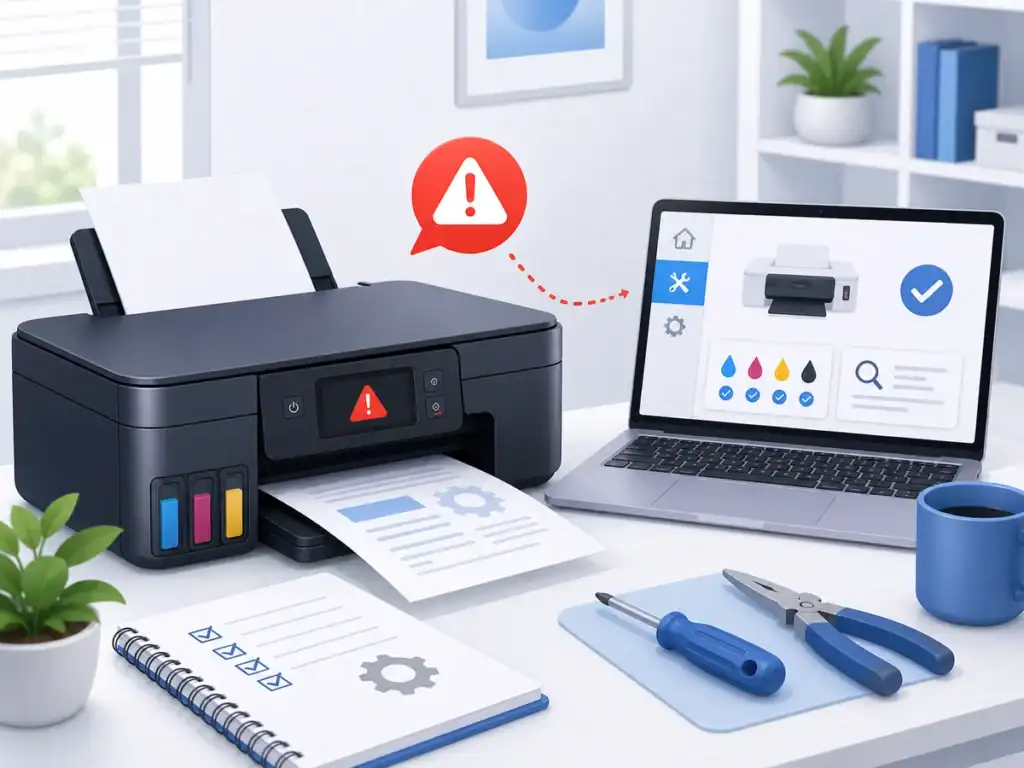
Quick Fix
Turn off the Canon printer, unplug it from power, and wait at least 10 minutes. Then reconnect the power, restart the printer, and check whether the B200 error disappears.
Try This First
• B200 appeared suddenly → power off and let the printer cool down
• Error appeared after changing ink → reseat the cartridges
• Printer has not printed well recently → run print head cleaning
• Error keeps returning → contact Canon support before replacing parts
If the issue continues, follow the fixes below.
What Is Canon Printer Error B200?
Canon printer error B200 usually points to a serious problem with the print head, ink system, or internal printer hardware.
The printer may stop printing completely because it detects a condition that could affect the print head or damage the printer if printing continues.
What Causes Canon Printer Error B200?
The most common causes include:
• Print head overheating
• Clogged or damaged print head
• Ink cartridge not seated correctly
• Empty, faulty, or incompatible ink cartridge
• Internal printer hardware problem
• Power or reset-related printer error
• Heavy printing without enough cooling time
This error is more serious than a normal print queue or offline issue, so handle the printer carefully.
How to Fix Canon Printer Error B200
Follow these steps carefully. Stop if the printer shows damage, leaking ink, burning smell, or repeated hardware warnings.
Turn Off and Restart the Printer
- Press the Power button to turn off the Canon printer
- Wait until the printer fully shuts down
- Unplug the power cable from the wall outlet
- Leave the printer unplugged for at least 10 minutes
- Plug the power cable back in
- Turn the printer on
- Check if the B200 error is gone
If your printer also shows as offline in Windows after restarting, follow this guide: Printer Offline Fix
Power cycling gives the printer time to cool down and can clear temporary internal errors.
Remove and Reinstall Ink Cartridges
- Turn off the printer
- Open the printer cover carefully
- Wait for the cartridge carriage to stop moving
- Remove each ink cartridge one at a time
- Check for damaged, empty, leaking, or incorrectly placed cartridges
- Reinsert each cartridge firmly into its correct slot
- Close the printer cover
- Turn the printer back on
- Check if the error returns
A loose or faulty ink cartridge can trigger Canon B200 because the printer may not detect the ink system correctly.
Check for Overheating
- Turn off the printer
- Unplug it from power
- Leave it off for 20–30 minutes if it was used heavily
- Move the printer to a well-ventilated area
- Make sure vents are not blocked by paper, dust, or objects
- Plug the printer back in
- Turn it on and test again
Print head overheating is one possible reason for B200. Letting the printer cool down can help if the error appeared after heavy printing.
Run Print Head Cleaning From Printer Settings
- Open your computer’s printer settings
- Select your Canon printer
- Open Printing preferences, Maintenance, or Printer properties
- Look for Print Head Cleaning or Cleaning
- Run the cleaning option
- Wait until the process finishes
- Print a test page if the printer allows it
If your printer will not print even after basic checks, follow this guide: HP Printer Not Printing Fix
Print head cleaning can help if the error is related to clogged ink flow, but it may not work if the print head is damaged.
Carefully Clean Around the Print Head Area
- Turn off the printer
- Unplug it from power
- Open the printer cover
- Look for visible ink buildup, dust, or debris around the cartridge area
- Use a dry, lint-free cloth to gently clean only easy-to-reach areas
- Do not force parts to move
- Do not use water inside the printer
- Close the cover and restart the printer
Be careful. The print head is delicate, and rough cleaning can make the problem worse. Skip this step if you are not comfortable handling printer parts.
Reset the Printer Power
- Turn off the Canon printer
- Unplug the power cable
- Press and hold the Power button for about 10 seconds
- Release the button
- Plug the printer back in
- Turn it on
- Check if the B200 error clears
A power reset can clear some internal printer errors, especially after overheating or cartridge changes.
Check for Paper Jam or Obstruction
- Turn off the printer
- Unplug it from power
- Open the paper tray and printer cover
- Look for small pieces of paper, labels, or debris
- Remove any obstruction gently
- Make sure the cartridge carriage can move freely if visible
- Close the printer
- Turn it back on
A jam or obstruction can sometimes trigger hardware-related errors because the printer cannot move parts correctly.
Try Replacing Problem Ink Cartridges
- Check which cartridges are low, empty, or not recognized
- Remove the suspected cartridge
- Reinsert it firmly
- If the warning continues, replace that cartridge with a compatible Canon cartridge
- Restart the printer
- Check if the B200 error clears
Faulty or incompatible cartridges can cause ink system errors. Use the exact cartridge type supported by your Canon printer model.
Contact Canon Support or Check Repair Options
- Find your exact Canon printer model number
- Go to the official Canon support website
- Search for your printer model
- Look for information about B200 error or print head problems
- Contact Canon support if the error keeps returning
- Ask whether print head replacement is recommended for your model
- Compare repair cost with the cost of a replacement printer
If the B200 error keeps returning after power reset, cartridge checks, and careful cleaning, the print head or internal hardware may be damaged.
How to Prevent Canon Printer Error B200
• Avoid very long print sessions without breaks
• Keep the printer in a ventilated area
• Use the correct ink cartridges for your exact model
• Replace empty cartridges before continuing heavy printing
• Keep the printer clean and free of paper debris
• Do not force printer parts or remove parts you are unsure about
If your Canon printer does not show B200 but still will not print, follow this guide: Canon Printer Not Printing Fix
Frequently Asked Questions
What does Canon printer error B200 mean?
Canon printer error B200 usually means the printer has detected a serious problem with the print head, ink system, or internal hardware.
Can I fix Canon B200 error myself?
Sometimes yes. Power cycling, reseating cartridges, checking overheating, and cleaning easy-to-reach areas may help. If the error keeps returning, the printer may need repair.
Is Canon B200 a serious error?
Yes, B200 is more serious than a normal printing or offline issue because it can involve the print head or printer hardware.
You may also want to check our guides on Epson Printer Not Printing Fix and HP Printer Error E3 Fix for related printer issues.