
Outlook Not Syncing Emails Fix is needed when new emails do not update, sent messages do not appear on other devices, or changes made in Outlook do not sync properly.
This issue usually happens because Outlook is offline, your internet connection is unstable, Send/Receive is stuck, cached data is outdated, your mailbox has sync errors, or your Outlook profile needs repair.
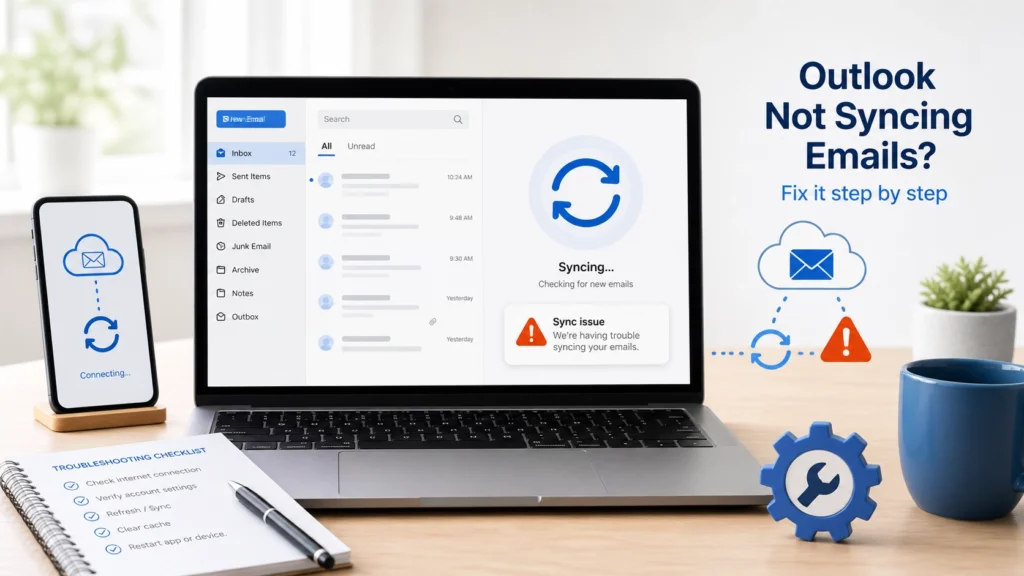
Quick Fix
Click Send/Receive All Folders, then check that Outlook is not set to Work Offline. If emails still do not sync, restart Outlook and check your internet connection.
Try This First
• Emails not updating → click Send/Receive All Folders
• Outlook says Working Offline → turn off Work Offline
• Emails show on webmail but not Outlook → check sync status
• Sync keeps failing → restart Outlook and check account settings
If the issue continues, follow the fixes below.
Why Is Outlook Not Syncing Emails?
Outlook may stop syncing when it cannot connect to your mail server or update mailbox data correctly.
This can appear as new emails not showing, sent emails missing on other devices, deleted messages coming back, calendar changes not updating, or Outlook showing different mail than webmail.
What Causes Outlook Sync Problems?
The most common causes include:
• Weak or unstable internet connection
• Outlook set to Work Offline
• Send/Receive stuck or delayed
• Stuck email in Outbox
• Cached Exchange Mode or local cache problems
• Incorrect account settings
• Corrupted Outlook profile
• Temporary email server problems
This issue usually means Outlook can open, but it is not updating your mailbox correctly.
Outlook Not Syncing Emails Fix: Sync Settings to Check
Follow these steps until Outlook updates your emails normally again.
Click Send/Receive All Folders
- Open Outlook
- Click the Send/Receive tab at the top
- Click Send/Receive All Folders
- Wait for the sync process to finish
- Watch the bottom status bar for errors
- Check your inbox again
If Outlook does not receive new emails even after syncing, follow this guide: Outlook Not Receiving Emails Fix
Send/Receive forces Outlook to refresh your mailbox and download new changes.
Check Your Internet Connection
- Open a browser such as Chrome or Edge
- Try opening a website
- If websites do not load, restart your router
- Reconnect to WiFi or Ethernet
- Open Outlook again
- Click Send/Receive All Folders
- Check if emails update
If Outlook is not working properly overall, follow this guide: Outlook Not Working Fix
Outlook needs a stable internet connection to sync emails, folders, calendar changes, and sent messages.
Turn Off Work Offline Mode
- Open Outlook
- Look at the bottom status bar
- Check if it says Working Offline
- Click the Send/Receive tab
- Click Work Offline once to turn it off
- Wait a few seconds
- Make sure the Working Offline message disappears
- Click Send/Receive All Folders again
Work Offline mode stops Outlook from connecting to the mail server, even when your internet is working.
Check for Stuck Emails in Outbox
- Open Outlook
- Click Outbox in the left folder list
- Look for emails that failed to send
- Open the stuck message
- Remove large attachments if needed
- Move the message to Drafts or delete it
- Click Send/Receive All Folders again
If Outlook emails are stuck and will not send, follow this guide: Outlook Not Sending Emails Fix
A stuck Outbox message can block or delay Outlook syncing.
Check Sync Status and Errors
- Open Outlook
- Click the Send/Receive tab
- Click Send/Receive All Folders
- Watch the status bar at the bottom
- Look for errors such as disconnected, send/receive error, or password prompts
- If Outlook asks for a password, enter it carefully
- Restart Outlook and test again
If Outlook keeps asking for your password during sync, follow this guide: Outlook Keeps Asking for Password Fix
Sync errors can show why Outlook is failing to update your mailbox.
Restart Outlook
- Close Outlook completely
- Press Ctrl + Shift + Esc
- Open Task Manager
- Look for Outlook or Outlook.exe
- Select it and click End task if it is still running
- Open Outlook again
- Click Send/Receive All Folders
Restarting Outlook clears stuck sync processes and temporary app glitches.
Safely Clear Outlook Local Cache
- Close Outlook completely
- Open Control Panel
- Search for Mail
- Open Mail (Microsoft Outlook)
- Click Email Accounts
- Select your email account
- Click Change
- If available, temporarily turn Cached Exchange Mode off
- Restart Outlook and test syncing
- Turn Cached Exchange Mode back on later if needed
Do not randomly delete every file in the Outlook local folder. That can create confusion or remove local data. Changing cache settings through Outlook/Mail settings is safer for beginner users.
Update Outlook
- Open Outlook
- Click File
- Click Office Account
- Click Update Options
- Click Update Now
- Install any available updates
- Restart your computer
- Open Outlook and test syncing again
If Outlook does not open, use Word or Excel, then go to File → Account → Update Options → Update Now.
Updating Outlook can fix sync bugs and mail connection problems.
Repair Outlook or Microsoft Office
- Open Control Panel
- Click Programs
- Click Programs and Features
- Select Microsoft Office or Microsoft 365
- Click Change
- Choose Quick Repair first
- Follow the on-screen instructions
- Restart your computer
- Open Outlook and test syncing
- If Quick Repair does not help, repeat the steps and choose Online Repair
Repairing Office can fix damaged Outlook files that affect syncing.
Create a New Outlook Profile
- Close Outlook completely
- Open Control Panel
- Search for Mail
- Open Mail (Microsoft Outlook)
- Click Show Profiles
- Click Add
- Type a new profile name
- Add your email account
- Choose Prompt for a profile to be used if you want to test it first
- Open Outlook with the new profile
- Check if emails sync normally
If Outlook gets stuck while loading the profile, follow this guide: Outlook Stuck on Loading Profile Fix
A new profile can fix sync problems caused by corrupted Outlook profile settings.
Restart Your Computer
- Save anything important you are doing
- Close Outlook and other open apps
- Click the Start button
- Click the Power icon
- Select Restart
- Wait for Windows to fully load
- Open Outlook and check syncing again
Restarting clears temporary Windows and Outlook problems that can affect email syncing.
How to Prevent Outlook Sync Problems
• Keep Outlook and Microsoft Office updated
• Avoid leaving Outlook in Work Offline mode
• Check Outbox when emails stop syncing
• Keep your internet connection stable
• Restart Outlook when sync gets stuck
• Repair Office if send/receive errors keep returning
• Create a new profile if one profile keeps failing
Frequently Asked Questions
Why is Outlook not syncing emails?
Outlook usually stops syncing because of internet problems, Work Offline mode, stuck Send/Receive, stuck Outbox messages, password prompts, cache problems, or profile errors.
How do I force Outlook to sync?
Open Outlook, click Send/Receive, then click Send/Receive All Folders. This forces Outlook to refresh your mailbox.
Why do emails show in webmail but not Outlook?
This usually means Outlook is not syncing correctly, the local cache is outdated, or the Outlook profile/account settings need to be refreshed.
You may also want to check our guides on Outlook Search Not Working Fix, Outlook Keeps Crashing Fix and Outlook Not Opening Fix for related Outlook issues.