
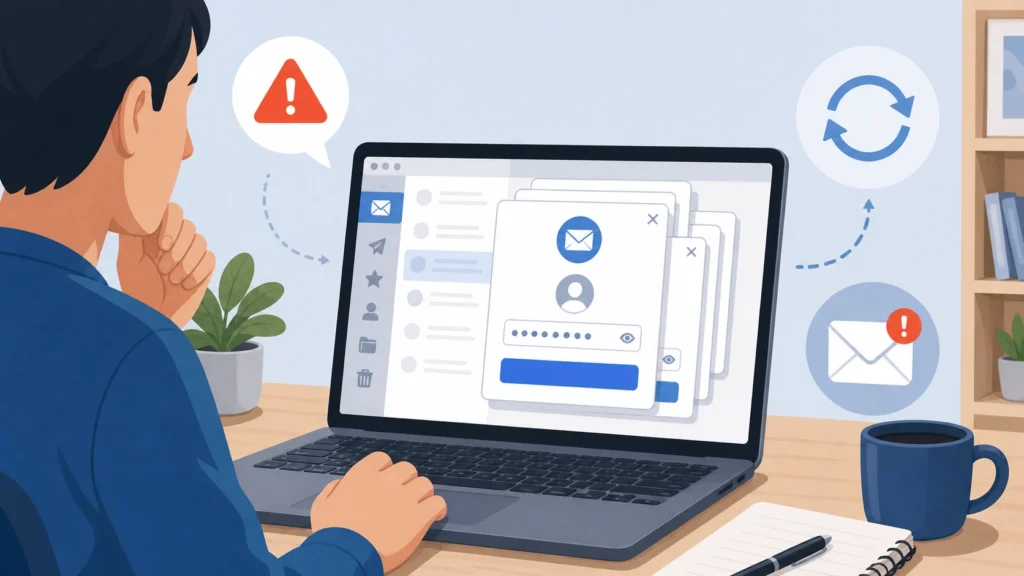
Outlook Keeps Asking for Password Fix is needed when Microsoft Outlook repeatedly asks for your email password, even after you enter it correctly.
This issue usually happens because of outdated saved credentials, changed passwords, account authentication problems, corrupted Outlook profiles, Work Offline mode, unstable internet, or Microsoft Office login conflicts.
Quick Fix
Restart Outlook and your computer, then enter your password carefully. If the prompt keeps coming back, remove old Outlook credentials from Windows Credential Manager and sign in again.
Try This First
• Password prompt keeps appearing → restart Outlook
• Password is correct but not accepted → remove saved credentials
• Prompt appears after password change → update credentials in Outlook
• Outlook cannot connect → check internet and Work Offline mode
If the issue continues, follow the fixes below.
Why Does Outlook Keep Asking for Password?
Outlook keeps asking for your password when it cannot authenticate your email account properly.
This can appear as repeated login prompts, password boxes that return after you close them, Outlook asking for credentials after every restart, or Outlook refusing a password that works in webmail.
What Causes Outlook Password Prompts?
The most common causes include:
• Old or corrupted saved credentials
• Password changed but Outlook still saved the old one
• Outlook account authentication error
• Work Offline mode enabled
• Unstable internet connection
• Corrupted Outlook profile
• Microsoft Office sign-in issue
• Email provider security or app password requirement
This issue usually means Outlook cannot confirm your account login with the email server.
Outlook Keeps Asking for Password Fix: Sign-In Checks That Help
Follow these steps until Outlook stops showing repeated login prompts.
Re-Enter Your Password Carefully
- Wait for Outlook to show the password prompt
- Type your email password slowly
- Make sure Caps Lock is OFF
- Check that the email address shown in the prompt is correct
- Select Remember my credentials if the option appears
- Click OK or Sign in
- Restart Outlook and check if the prompt returns
If Outlook accepts the password once but keeps asking again, the saved credential may be corrupted.
Remove Saved Credentials in Windows
- Close Outlook completely
- Press Windows + S
- Type Credential Manager
- Open Credential Manager
- Click Windows Credentials
- Look for entries related to Outlook, Office, MicrosoftOffice, Microsoft 365, or your email account
- Click the related entry
- Click Remove
- Repeat this for old Outlook or Office credentials
- Restart your computer
- Open Outlook and sign in again
If Outlook also has syncing problems after sign-in, follow this guide: Outlook Not Syncing Emails Fix
Removing saved credentials clears old or corrupted login information that may be causing the repeated password prompt.
Check Work Offline Mode
- Open Outlook
- Look at the bottom status bar
- Check if it says Working Offline
- Click the Send/Receive tab
- Click Work Offline once to turn it off
- Wait a few seconds
- Check if Outlook reconnects
- Enter your password again if asked
Work Offline mode can make Outlook fail to connect correctly, which may trigger repeated login prompts.
Check Your Internet Connection
- Open a browser such as Chrome or Edge
- Try opening a website
- If websites do not load, restart your router
- Reconnect to WiFi or Ethernet
- Open Outlook again
- Click Send/Receive All Folders
- Check if the password prompt returns
If Outlook is not working properly overall, follow this guide: Outlook Not Working Fix
Outlook needs a stable connection to authenticate your account with the email server.
Update Your Password in Account Settings
- Open Outlook
- Click File
- Click Account Settings
- Click Account Settings again
- Select your email account
- Click Change or Repair if available
- Enter your current password if Outlook asks
- Let Outlook test the account settings
- Restart Outlook
If you recently changed your email password in webmail, Outlook may still be trying to use the old saved password.
Check Office Account Sign-In
- Open Outlook
- Click File
- Click Office Account
- Check if your Microsoft account shows a warning or sign-in message
- Click Sign in if needed
- Complete any Microsoft sign-in prompt
- Restart Outlook
Microsoft 365 accounts can show password prompts when Office itself is not signed in correctly.
Check If Your Email Provider Requires an App Password
- Sign in to your email account in a browser
- Check whether two-factor authentication is enabled
- Look in your account security settings for App passwords
- If your provider requires one, generate an app password
- Use that app password in Outlook instead of your normal account password
- Save the credential if Outlook asks
Some email accounts require an app password for Outlook when two-factor authentication is enabled.
Disable Cached Exchange Mode Temporarily
- Open Outlook
- Click File
- Click Account Settings
- Click Account Settings again
- Select your email account
- Click Change
- Uncheck Use Cached Exchange Mode if the option appears
- Click Next or Done
- Restart Outlook
- Test whether the password prompt stops
Use this as a test, not as a permanent first choice. Cached Exchange Mode is useful for many users, but a damaged cache can sometimes contribute to repeated prompts.
Create a New Outlook Profile
- Close Outlook completely
- Open Control Panel
- Search for Mail
- Open Mail (Microsoft Outlook)
- Click Show Profiles
- Click Add
- Type a new profile name
- Add your email account
- Choose Prompt for a profile to be used if you want to test it first
- Open Outlook and select the new profile
- Check if the password prompt stops
If Outlook gets stuck while loading the profile, follow this guide: Outlook Stuck on Loading Profile Fix
A new Outlook profile can fix repeated password prompts caused by corrupted profile settings.
Update Outlook
- Open Outlook
- Click File
- Click Office Account
- Click Update Options
- Click Update Now
- Install any available updates
- Restart your computer
- Open Outlook again
If Outlook will not open, use Word or Excel, then go to File → Account → Update Options → Update Now.
Updating Outlook can fix authentication and sign-in bugs.
Repair Microsoft Office
- Open Control Panel
- Click Programs
- Click Programs and Features
- Select Microsoft Office or Microsoft 365
- Click Change
- Choose Quick Repair first
- Follow the on-screen instructions
- Restart your computer
- Open Outlook and test the password prompt
- If Quick Repair does not help, repeat the steps and choose Online Repair
Repairing Office can fix damaged Microsoft 365 or Outlook files that affect sign-in.
How to Prevent Outlook Password Prompts
• Keep Outlook and Microsoft Office updated
• Update saved credentials after changing your password
• Keep your internet connection stable
• Avoid leaving Outlook in Work Offline mode
• Use app passwords when your provider requires them
• Create a new Outlook profile if prompts keep returning
• Do not enter passwords into suspicious pop-ups outside Outlook or official webmail
Frequently Asked Questions
Why does Outlook keep asking for my password?
Outlook usually keeps asking for your password because saved credentials are outdated, the password changed, Outlook cannot authenticate, Work Offline mode is enabled, or the Outlook profile is corrupted.
How do I stop Outlook from asking for a password repeatedly?
Start by removing old Outlook credentials from Windows Credential Manager, then restart Outlook and sign in again. If needed, check account settings, internet connection, and your Outlook profile.
Will removing Outlook credentials delete my emails?
No, removing saved credentials does not delete your emails. It only removes stored login information from Windows so Outlook can ask you to sign in again.
You may also want to check our guides on Outlook Not Sending Emails Fix, Outlook Not Receiving Emails Fix and Outlook Not Opening Fix for related Outlook issues.