
Samsung TV Not Connecting to WiFi Fix is needed when your TV cannot find a wireless network, fails to connect, or connects but has no internet access.
This issue is usually caused by weak WiFi signal, router problems, incorrect password, DNS settings, or saved network configuration problems.
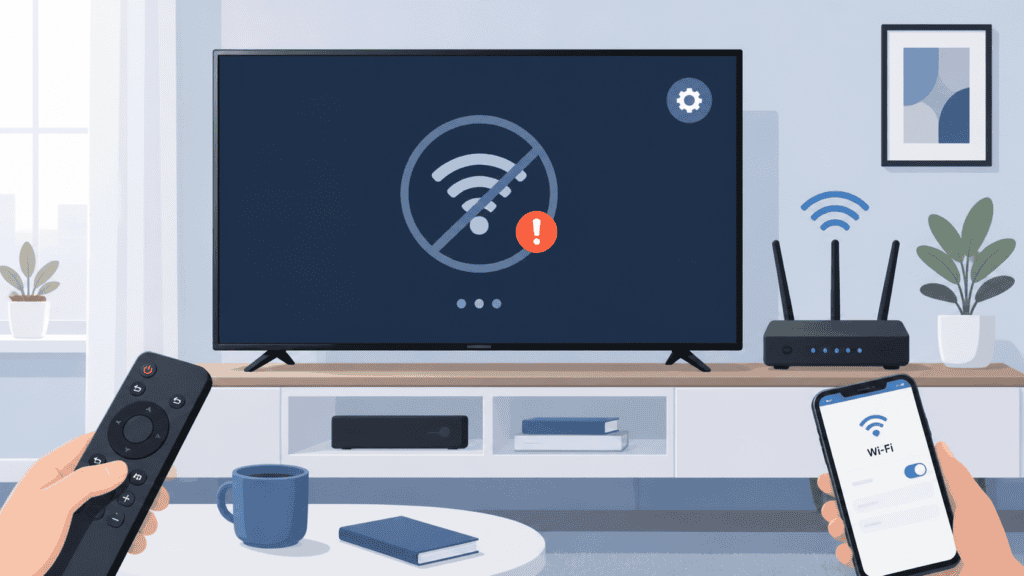
Quick Fix
Restart your Samsung TV and router, then reconnect to WiFi from Settings → General → Network → Open Network Settings.
Try This First
• WiFi not showing → restart router and move closer to the TV
• Cannot connect → re-enter WiFi password carefully
• Connected but no internet → reset network settings or change DNS
If the issue continues, follow the fixes below.
Why Is My Samsung TV Not Connecting to WiFi?
If your Samsung TV is not connecting to WiFi, it means the TV cannot properly communicate with your wireless network.
This can happen because of a weak signal, wrong password, router problem, DNS issue, or saved network setting that no longer works.
What Causes Samsung TV WiFi Connection Issues?
The most common causes include:
• Weak or unstable WiFi signal
• Incorrect WiFi password
• Router or modem problems
• TV software glitches
• Saved network settings problems
• Incompatible WiFi band, such as 2.4 GHz vs 5 GHz
• DNS configuration problems
This issue is different from app errors because the TV must first connect to the network before apps, Smart Hub, or Samsung online services can work properly.
Samsung TV Not Connecting to WiFi Troubleshooting Table
Use this table to quickly narrow down whether the problem is your TV, router, WiFi signal, password, or network settings.
| What You See | Most Likely Cause | First Fix to Try |
|---|---|---|
| Samsung TV cannot find WiFi | Router signal or TV network scan issue | Restart the TV and router |
| TV sees WiFi but will not connect | Wrong password or saved network problem | Forget the network and reconnect |
| WiFi connects then disconnects | Weak signal or router instability | Move router closer or restart it |
| Other devices work but TV does not | TV network settings issue | Reset network settings on the TV |
| Streaming apps fail after WiFi connects | Internet or DNS problem | Change DNS and restart Smart Hub |
| TV works on mobile hotspot | Router, ISP, or home network issue | Check router settings and WiFi band |
Samsung TV Not Connecting to WiFi Fix: Step-by-Step Solutions
Follow these steps until your Samsung TV connects to WiFi normally again.
Check WiFi Connection
- Check if other devices can connect to your WiFi
- Open a website or app on your phone or computer
- If other devices also cannot connect, restart your router
- If other devices work, the issue is likely with the TV
- Try connecting your TV to WiFi again
This helps confirm whether the problem is your router, internet service, or Samsung TV.
Restart Your Samsung TV
- Turn OFF your Samsung TV using the Power button
- Unplug the TV from the power outlet
- Wait at least 60 seconds
- Plug the TV back in
- Turn the TV ON
- Try connecting to WiFi again
Restarting clears temporary TV glitches that may block WiFi connection.
Restart Your Router
- Turn OFF your router
- Unplug it from the power source
- Wait at least 60 seconds
- Plug it back in
- Wait until the internet lights stabilize
- Try connecting your TV again
Restarting the router refreshes your internet connection and can fix temporary network problems.
Reconnect to WiFi Network
- Press the Home button on your remote
- Go to Settings → General → Network
- Select Open Network Settings
- Choose Wireless
- Select your WiFi network
- Enter the correct password
- Try connecting again
If your TV shows a specific WiFi-related error code, follow this guide: Samsung TV Error Code 107 Fix
Reconnecting refreshes saved network information and helps fix incorrect WiFi settings.
Check WiFi Password
- Press the Home button on your remote
- Go to Settings → General → Network → Open Network Settings
- Choose Wireless
- Select your WiFi network
- Re-enter your WiFi password carefully
Make sure there are no typos, extra spaces, or wrong uppercase and lowercase letters.
An incorrect password will prevent your Samsung TV from connecting even if the WiFi network appears normally.
Move Router Closer or Reduce Interference
- Place your router closer to the TV if possible
- Remove large obstacles between the router and TV
- Keep the router away from thick walls, microwaves, and other electronics
- Restart the router after moving it
- Try connecting the TV again
Weak WiFi signal or interference can prevent the TV from connecting reliably.
Switch Between 2.4 GHz and 5 GHz WiFi
- Press the Home button on your remote
- Go to Settings → General → Network → Open Network Settings
- Choose Wireless
- Look for two similar network names, such as HomeWiFi and HomeWiFi_5G
- Try connecting to the other network
- Enter the password and test the connection
Use 2.4 GHz if your TV is far from the router because it has better range. Use 5 GHz if your TV is close to the router and you want faster speed.
If the connection keeps dropping or becomes unstable, follow this guide: Samsung TV Error Code 012 Fix
Check Network Status on TV
- Press the Home button on your remote
- Go to Settings → General → Network
- Select Network Status
- Wait for the test to finish
- Check whether the issue is with the TV, router, or internet
- Follow any on-screen suggestions
Network Status helps identify where the connection is failing.
Reset Network Settings on TV
- Press the Home button on your remote
- Go to Settings → General → Network
- Select Reset Network
- Confirm the reset
- Restart your TV
- Reconnect to WiFi
If your TV connects to WiFi but cannot access online services, see this guide: Samsung TV Error Code 202 Fix
Resetting network settings removes saved WiFi data and incorrect network configuration.
Change DNS Settings
- Press the Home button on your remote
- Go to Settings → General → Network → Network Status
- Open IP Settings
- Select DNS Settings
- Choose Enter Manually
- Enter 8.8.8.8
- Save the settings and reconnect
Changing DNS can fix connection issues caused by network configuration problems.
Update TV Software
- Press the Home button on your remote
- Go to Settings → Support → Software Update
- Select Update Now
- Wait for the update to finish
- Restart your TV
- Try connecting again
Outdated software can cause WiFi connection issues and network errors.
How to Prevent Samsung TV WiFi Issues
• Keep your TV software updated
• Keep your router within range
• Use the correct WiFi password
• Restart your router occasionally
• Avoid placing the TV far from the router
Frequently Asked Questions
Why won’t my Samsung TV connect to WiFi?
This is usually caused by weak signal, incorrect password, router issues, or saved network settings.
Can weak WiFi cause Samsung TV connection problems?
Yes, weak WiFi signal is one of the most common reasons Samsung TVs fail to connect.
Should I use 2.4 GHz or 5 GHz WiFi for Samsung TV?
Use 2.4 GHz for better range if the TV is far from the router. Use 5 GHz for faster speed if the TV is close to the router.
You may also want to check our guides on Samsung TV Error Code 102 Fix, Samsung TV Error Code 118 Fix and Samsung Smart Hub Not Working Fix for related connection and Smart Hub issues.