
This Site Can’t Be Reached Fix is needed when your browser cannot open a website due to connection problems.
This message is a general browser error that can represent different problems such as DNS failures, connection timeouts, or blocked access. In many cases, this error is temporary and can be fixed with simple network or browser adjustments.
This guide shows how to fix “This Site Can’t Be Reached” errors step by step.
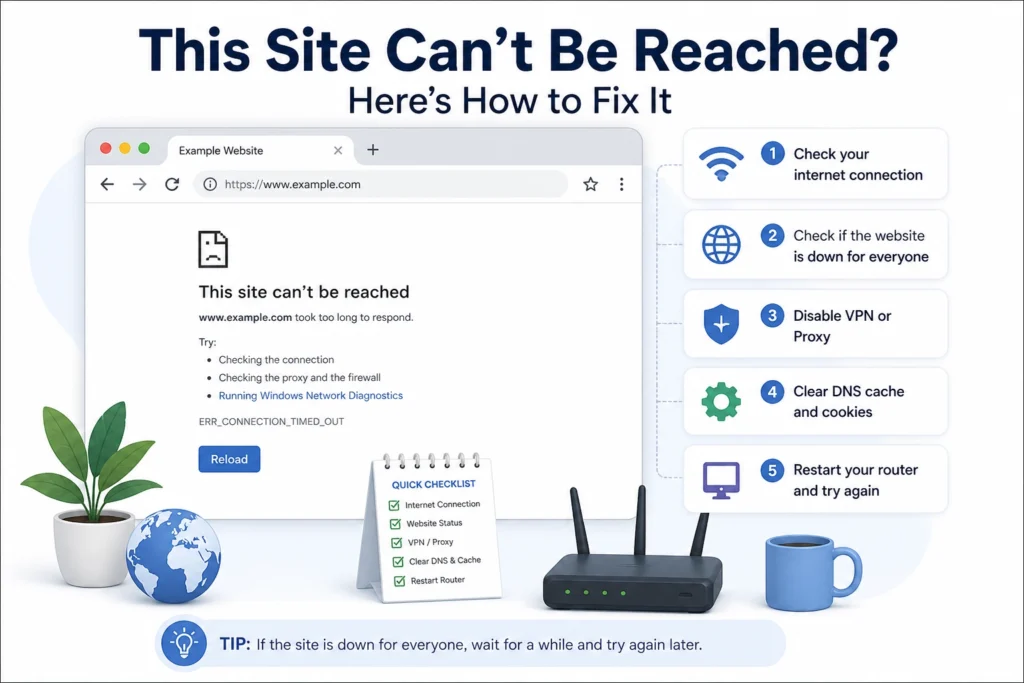
Quick Fix
Restart your router and computer, then try opening the website again. If the issue continues, clear your browser cache and disable any VPN or proxy.
Try This First
• Only one website not working → the site may be down
• All websites not loading → check your internet connection
• Works on another device → browser or network issue
If the issue continues, follow the fixes below.
Why This Happens
This error appears when your browser cannot establish a connection to a website. The problem may come from your internet connection, your browser or device, or the website server itself. In some cases, the website is temporarily unavailable, but in other cases, the issue is caused by DNS settings, cached browser data, firewall settings, or a local network problem.
What Causes This Issue
• Website server is down
• No internet connection
• DNS problems
• Browser cache issues
• Firewall or antivirus blocking access
Different versions of this error (such as DNS or connection errors) require different fixes, which is why multiple solutions may be needed.
This Site Can’t Be Reached Troubleshooting Table
Use this table to quickly narrow down whether the problem is your browser, internet connection, DNS settings, or the website itself.
| What You See | Most Likely Cause | First Fix to Try |
|---|---|---|
| Only one website will not open | Website server issue or local browser cache | Refresh the page and test the site in another browser |
| Many websites will not open | Internet or DNS problem | Restart your router and change DNS settings |
| Error appears only in Chrome | Browser cache, extension, or Chrome setting issue | Clear Chrome cache and disable extensions |
| Error appears after WiFi problems | Weak or unstable connection | Reconnect to WiFi or test another network |
| Error mentions DNS | DNS server or name resolution problem | Flush DNS and switch to public DNS |
| Site works on mobile data but not WiFi | Router, ISP, or local network issue | Restart router and test another DNS server |
This Site Can’t Be Reached Fix: Step-by-Step Solutions
Follow these steps until the issue is resolved.
Check If the Website Is Down
- Try opening the website on another device
- Try using mobile data
- Open a different website
If only one website is not working, the problem is likely on the server and not your device.
Restart Your Router
- Turn off your router
- Unplug it from power
- Wait 30–60 seconds
- Plug it back in
- Wait until the connection stabilizes
Restarting the router fixes temporary network issues.
Check Your Internet Connection
If your connection is unstable or not working, follow this guide: ERR_INTERNET_DISCONNECTED Fix
- Open another website
- Check if it loads properly
- Reconnect to WiFi or Ethernet if needed
If your device is offline, the browser cannot reach any website.
Clear Browser Cache
- Open your browser settings
- Go to Privacy or History
- Select Clear browsing data
- Choose Cached images and files
- Confirm and restart your browser
Corrupted or outdated cache can block proper connections.
Try a Different Browser
- Open the same website in another browser
- If it works, the issue is browser-related
- Clear browser settings or extensions
Disable VPN or Proxy
- Open your device settings
- Go to Network or VPN settings
- Turn off any active VPN or proxy
- Restart your browser
VPNs and proxies can block or misroute connections.
Flush DNS Cache
- Open Command Prompt as administrator
- Type:
ipconfig /flushdns - Press Enter
- Restart your browser
This clears outdated DNS data and helps your browser find websites correctly.
If DNS fails, your browser cannot locate the website’s server, so the connection cannot start.
Change DNS Server
If DNS is not working properly, follow this guide: ERR_NAME_NOT_RESOLVED Fix
- Open Network Settings
- Change DNS to:
- 8.8.8.8
- 8.8.4.4
- Save settings
- Restart your connection
DNS issues can prevent your browser from locating websites.
Check Firewall or Antivirus
- Open your firewall or antivirus settings
- Temporarily disable protection
- Try opening the website again
Security software can sometimes block connections.
How to Prevent This Issue
• Keep your browser updated
• Avoid unstable networks
• Use reliable DNS servers
• Restart your router regularly
Frequently Asked Questions
Why does “This Site Can’t Be Reached” appear?
It appears when your browser cannot connect to a website due to network, browser, or server issues.
Is this problem on my side or the website?
It can be either. Testing another device or website helps identify the cause.
Can DNS issues cause this error?
Yes, incorrect DNS settings can prevent your browser from finding a website.
You may also want to check our guides on ERR_CONNECTION_REFUSED Fix and ERR_CONNECTION_TIMED_OUT Fix for related browser issues.