
YouTube autoplay not working fix usually means the next video does not start after the current one ends, even though the Autoplay switch appears to be enabled. This can happen on desktop, mobile, smart TVs, or when casting from another device.
Before changing random browser or app settings, check the Autoplay toggle inside YouTube first. YouTube also saves autoplay preferences separately on different devices, so autoplay may work on your phone but stay off on your computer or TV.
This guide walks through the most useful checks first, including the YouTube player toggle, mobile app settings, account sync, inactivity limits, and connection problems that can stop the next video from loading.
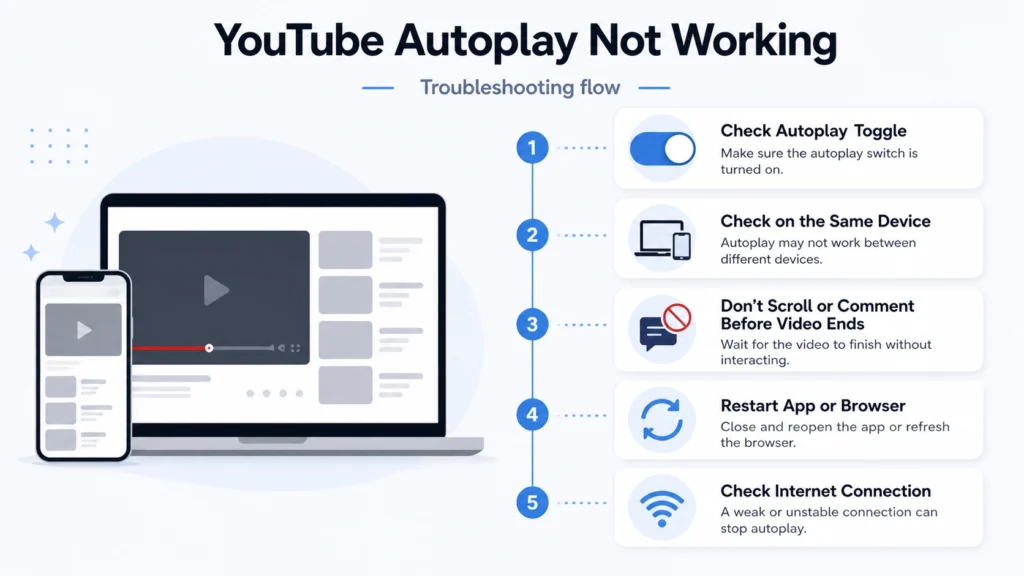
Quick Fix
Turn Autoplay OFF and ON again from the video player, then refresh the page or restart the YouTube app.
Try This First
• Next video not playing → toggle autoplay
• Works on one device only → check device settings
• Autoplay missing → update app or browser
If the issue continues, follow the fixes below.
Why Is YouTube Autoplay Not Working?
YouTube autoplay can stop for several different reasons. The most common one is simple: the Autoplay switch is turned off inside the video player or inside the YouTube app settings.
It can also happen because YouTube saves autoplay preferences separately on different devices. For example, autoplay may be enabled in the mobile app but disabled on desktop. YouTube may also stop autoplay after long inactivity, especially on mobile data or Wi-Fi, and the next video may not start if you scroll away from the player, type a comment, search for something, or the next video cannot load properly.
That is why the best fix is to check the YouTube autoplay setting first, then move on to app, account, browser, and connection checks.
What Causes This Issue?
• Autoplay is turned off in the YouTube player
• Autoplay is disabled separately on another device
• You scrolled away from the video, typed a comment, or searched before the next video started
• YouTube stopped autoplay after a long inactive session
• The app, browser, or account setting did not sync correctly
• The next video cannot load because of a weak connection or app problem
YouTube Autoplay Not Working Fix: Device and Playback Checks
Follow these steps until autoplay works normally.
Enable Autoplay
- Play any YouTube video
- Move your mouse over the video (or tap the screen on mobile)
- Look for the Autoplay toggle on the right side of the video player
- On desktop: usually near the video controls
- On mobile: tap the screen, then find the toggle at the top
- If the toggle is OFF (gray), tap or click it to turn it ON (blue)
- Let the video finish and check if the next video starts automatically
If autoplay is turned off, YouTube will not play the next video automatically.
If the toggle turns OFF again, sign out and sign back into your account, then try again.
Check Autoplay on the Correct Device
YouTube can save different autoplay settings on different devices. If autoplay works on your phone but not on your computer, or works on desktop but not on your TV, check the setting on the device where the problem happens.
1. Open YouTube on the device with the problem.
2. Play any video.
3. Look for the Autoplay switch inside the video player.
4. Turn Autoplay ON.
5. Let the video finish without scrolling away, commenting, or searching.
6. Check whether the next video starts.
If autoplay works on one device but not another, the issue is usually a device-specific YouTube setting, not your whole account.
Refresh or Restart YouTube
- On browser: press F5 or click refresh
- On mobile: close the YouTube app completely
- Reopen YouTube
- Play a video again
Restarting clears temporary playback issues.
Check Internet Connection
If videos stop or buffer instead of auto playing, follow this guide: YouTube Buffering Fix
- Open another video
- Check if it loads properly
- Restart your router if needed
Autoplay may fail if the next video cannot load.
Sign Out and Sign Back In
- Click your profile icon
- Select Sign out
- Sign back into your account
- Play a video and test autoplay
Account sync issues can affect playback settings.
Update YouTube App or Browser
- Open App Store / Play Store or browser settings
- Check for updates
- Install the latest version
- Restart your device
If videos fail to play completely, follow this guide: YouTube Videos Not Playing Fix
Outdated versions may break autoplay functionality.
Check If YouTube Stops Autoplay After Inactivity
YouTube may stop autoplay after a long period of inactivity. This is more likely if you leave videos running in the background for a while.
1. Start a YouTube video.
2. Keep the video player visible.
3. Do not scroll away, comment, or search before the video ends.
4. Wait for the next video preview to appear.
5. If YouTube shows a countdown or cancel option, let it continue.
6. If autoplay stops only after a long time, the feature may be pausing because of inactivity.
This is different from autoplay being broken. If autoplay works at first but stops later, the issue may be YouTube’s inactivity behavior rather than your browser or app.
Restart Your Device
- Press the Power button
- Select Restart
- Wait for device to reboot
- Open YouTube again
Restarting fixes temporary system glitches.
How to Prevent This Issue
• Keep autoplay enabled
• Keep your app updated
• Use stable internet
• Avoid restricted settings
Frequently Asked Questions
Why does YouTube autoplay work on my phone but not my computer?
YouTube can save autoplay settings separately on different devices. Turn Autoplay on from the video player or app settings on the exact device where it is not working.
Why does YouTube autoplay stop after a while?
YouTube may stop autoplay after long inactivity. It may also stop if you scroll away from the player, type a comment, search for something, or the next video fails to load.
Should I change browser settings to fix YouTube autoplay?
Usually, check YouTube’s own Autoplay switch first. Browser settings are not the first thing to change unless videos are also failing to play, load, or produce sound.
You may also want to check our guides on YouTube Keeps Pausing Fix and YouTube Playback Error Fix for related issues.