
Facebook Not Working Fix is needed when the Facebook app or website does not load, keeps crashing, freezes, or certain features stop responding.
This issue can happen on phones, tablets, or desktop browsers and is usually caused by internet problems, app glitches, browser cache, outdated software, login issues, or temporary Facebook service problems.
These Facebook not working fix steps are meant to help with the most common loading, feed, video, and app problems.
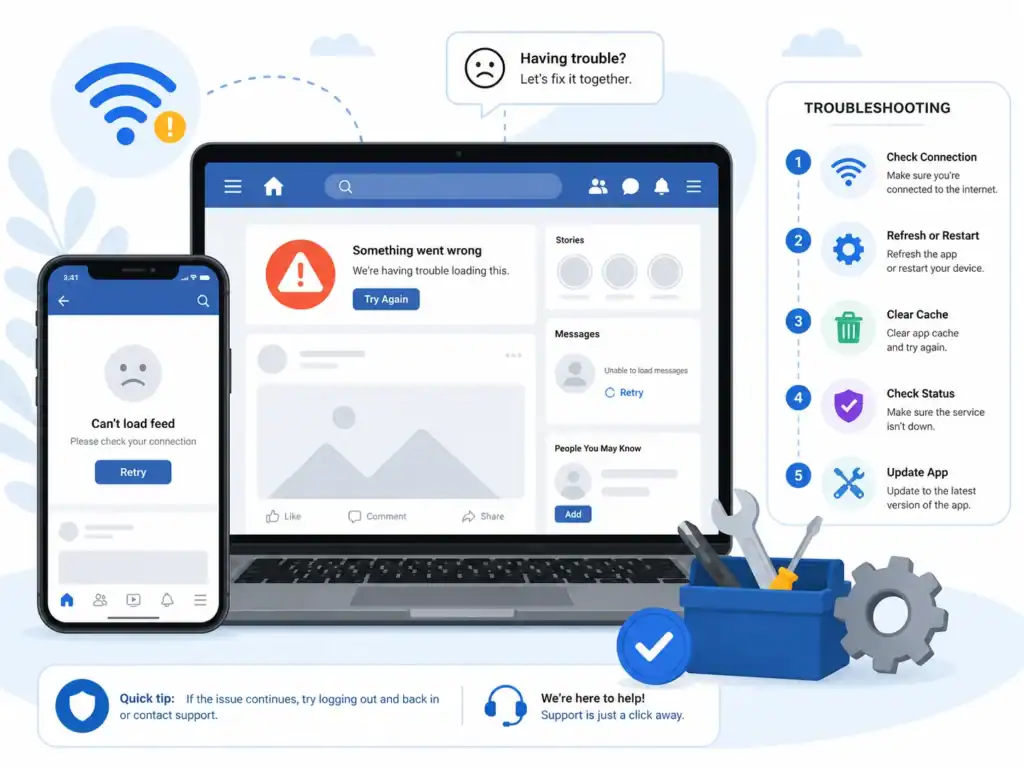
Quick Fix
Close Facebook completely, then reopen it and check your internet connection. If Facebook still does not work, restart your device and update the app or browser.
Try This First
• Facebook won’t open → close and reopen the app
• Facebook is blank or stuck loading → check your internet connection
• Facebook app keeps crashing → restart your device
• Facebook website not working → try another browser
If the issue continues, follow the fixes below.
Why Is Facebook Not Working?
Facebook may stop working when the app, browser, device, or internet connection cannot load Facebook services correctly.
This can appear as Facebook not loading, the app crashing, feed not refreshing, login problems, buttons not responding, or the website showing a blank page.
What Causes Facebook Not Working?
The most common causes include:
• Weak or unstable internet connection
• Temporary app or browser glitches
• Outdated Facebook app or browser
• Corrupted cache or stored data
• Facebook login or account session problems
• Browser extensions blocking Facebook
• Temporary Facebook service problems
This issue can come from your device, browser, Facebook app, internet connection, account session, or Facebook itself.
How to Fix Facebook Not Working
Follow these steps until Facebook loads and works normally again.
Refresh the Page or Reopen the App
- If you are using Facebook in a browser, click the Refresh button near the address bar
- If you are using the Facebook app, close it completely
- Wait a few seconds
- Open Facebook again
- Check if the feed, buttons, and pages load normally
If the Facebook app opens but buttons, feed, or features do not respond correctly, follow this guide: Facebook App Not Working Fix
Refreshing or reopening Facebook can fix temporary loading glitches.
Check Your Internet Connection
- Open another app or website, such as Google or YouTube
- Check if it loads normally
- If other websites also fail, turn WiFi OFF and ON
- Try switching from WiFi to mobile data
- Open Facebook again and check if it loads
If Facebook opens but keeps hanging or showing a blank screen, follow this guide: Facebook Not Loading Fix
Facebook needs a stable internet connection to load the feed, photos, videos, comments, and messages.
Restart Your Device
- Save anything important you are doing
- Close Facebook and other open apps
- Press and hold the Power button
- Tap Restart or Reboot
- Wait for your device to turn back on
- Open Facebook again
Restarting clears temporary system issues that may stop Facebook from working properly.
Update the Facebook App or Browser
- Open the Google Play Store on Android or the App Store on iPhone
- Search for Facebook
- Open the official Facebook app page
- Tap Update if an update is available
- Wait for the update to finish
- Restart your phone
- Open Facebook again
If you use Facebook in a browser:
- Open your browser
- Click the three dots menu in the top-right corner
- Go to Help → About if using Chrome or Edge
- Install any available update
- Restart the browser
- Open Facebook again
Updating fixes bugs, crashes, and compatibility problems that may stop Facebook from loading.
Clear Cache and Data
- Open your phone Settings
- Tap Apps
- Select Facebook
- Tap Storage
- Tap Clear Cache
- Open Facebook again and test it
- If Facebook still does not work, go back to the same screen
- Tap Clear Data or Clear Storage
- Open Facebook again and sign in
Clearing cache removes temporary files that may be corrupted. Clearing data resets the app and can fix deeper loading or crashing problems.
Disable Browser Extensions
- Open your browser
- Click the three dots menu in the top-right corner
- Go to Extensions or Manage extensions
- Turn OFF all extensions temporarily
- Restart the browser
- Open Facebook again
- If Facebook works, turn extensions back ON one by one to find the problem
Some extensions can block scripts, images, videos, or login features Facebook needs to work correctly.
Try a Different Browser or Device
- Open Facebook in another browser, such as Chrome, Edge, or Firefox
- Or try opening Facebook on another phone, tablet, or computer
- Log in to your account
- Check if Facebook works there
- If it works elsewhere, the issue is likely with your original browser, app, or device
If Facebook does not let you sign in properly, follow this guide: Facebook Login Problem Fix
Testing another device helps confirm whether Facebook itself is down or only your current setup has the problem.
Check Facebook Server Status
- Open a browser on your phone or computer
- Search for Facebook outage or Facebook server status
- Check if many users are reporting the same issue
- Try opening Facebook on another device
- Wait and try again later if Facebook is down
If Facebook is down for many users, the problem is not your device and you need to wait until Facebook fixes the service.
Turn Off VPN or Switch Between WiFi and Mobile Data
- If you are using a VPN, open the VPN app
- Turn the VPN OFF
- Open Facebook again and test it
- If Facebook still does not work, switch from WiFi to mobile data
- Or switch from mobile data to WiFi
- Reopen Facebook and check if it loads normally
VPNs and unstable networks can sometimes prevent Facebook from connecting properly. Switching networks helps confirm whether the issue is caused by your internet connection.
Reinstall the Facebook App
- Press and hold the Facebook app icon
- Tap Uninstall or Remove App
- Confirm the action
- Restart your phone
- Open the Google Play Store or App Store
- Search for Facebook
- Install the app again
- Open Facebook and log in
Reinstalling Facebook removes damaged app files and gives the app a fresh setup.
How to Prevent Facebook Issues
• Keep the Facebook app updated
• Keep your browser updated
• Clear cache occasionally
• Avoid too many browser extensions
• Use a stable internet connection
• Restart your device when apps become unstable
Frequently Asked Questions
Why is Facebook not loading?
Facebook usually fails to load because of internet problems, app glitches, browser cache, outdated software, or temporary Facebook service issues.
Why does the Facebook app keep crashing?
The Facebook app may crash because of corrupted cache, outdated app versions, low storage, device glitches, or temporary Facebook problems.
Can I fix Facebook not working myself?
Yes, most Facebook problems can be fixed by refreshing the app, checking your internet connection, clearing cache, updating the app, or reinstalling Facebook.
You may also want to check our guides on Facebook Feed Not Refreshing Fix, Facebook Messenger Not Working Fix and Facebook App Crashing Fix for related Facebook issues.