
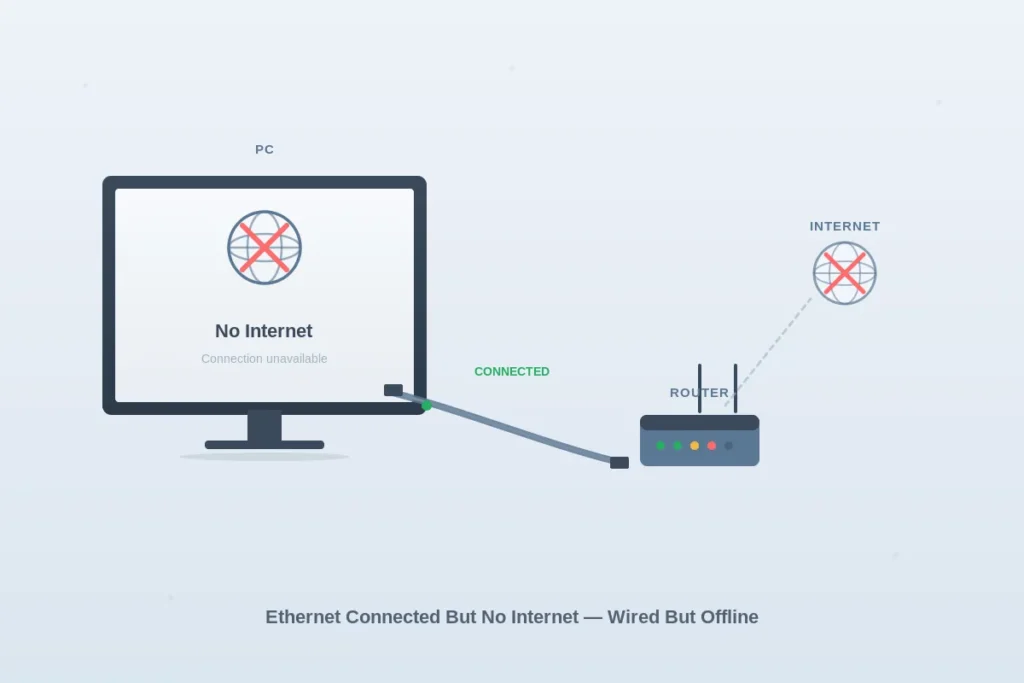
Ethernet connected but no internet is one of the most frustrating Windows networking problems — your computer shows a wired connection, but websites and apps refuse to load. The Ethernet light is on, the network shows as connected, and yet nothing works.
The cause is almost always one of these: a damaged cable or wrong router port, a network adapter glitch, corrupted IP or DNS settings, an outdated driver, or a Winsock catalog error.
This guide walks through each cause with the fix that resolves it, starting with the simplest cable check.
Quick Fix
Power-cycle the router (unplug 60 seconds, replug), restart your computer, and try a different Ethernet port on the router — this resolves more than half of all Ethernet-no-internet cases.
Try This First
- Other devices have internet, only this PC doesn’t → check network adapter driver and reset IP/DNS
- All devices lost internet at once → restart modem and router; check ISP status
- Cable plugged into the WAN/Internet port on router by mistake → move it to a LAN port
- Ethernet works on this PC normally, just stopped today → run
netsh winsock resetand reboot - You recently installed a VPN, antivirus, or Windows update → temporarily disable / roll back to test
If the issue continues, follow the fixes below.
Why Is Ethernet Connected But No Internet?
If your device is connected via Ethernet but has no internet, it usually means your computer is communicating with the router, but the router is not providing internet access.
This issue can appear as “No Internet”, “Connected, no internet”, or websites not loading.
What Causes Ethernet Connected But No Internet?
- Router or modem issues
- Loose or faulty Ethernet cable
- Network adapter problems
- Incorrect IP or DNS settings
- ISP (internet provider) outage
- Temporary system glitches
Working Fixes for Ethernet Connected But No Internet
Try the following solutions one by one until your internet works properly.
Check Ethernet Cable Connection
A loose or damaged cable can prevent internet access.
- Make sure the Ethernet cable is firmly plugged into your computer and router
- Check both ends of the cable
- Try using a different Ethernet port on the router
- If available, check if the Ethernet port light is blinking, which indicates active data transfer.
- If possible, try a different cable
- Look for small lights near the Ethernet port
- If there is no light, the cable or port may be faulty
- Try accessing a website again
Restart Your Router and Modem
Restarting network devices can fix connection issues.
- Turn off your router and modem
- Unplug them from power
- Wait at least 60 seconds
- Plug the modem back in first
- Wait until all lights stabilize
- Plug in the router
- Wait for connection to restore
- Try accessing the internet
Check the Cable Is in the Correct Router Port
Routers have two types of Ethernet ports: LAN ports (usually 4 yellow ports for connecting devices) and a WAN/Internet port (a single port, usually a different color, for the cable from your modem). If you accidentally plugged your computer’s cable into the WAN port instead of a LAN port, the connection will appear active but you’ll have no internet.
- Look at the back of your router
- Identify the WAN or Internet port — usually labeled “WAN,” “Internet,” or has a globe icon, and is often a different color from the LAN ports
- Identify the LAN ports — usually 4 ports labeled “LAN 1, 2, 3, 4” or just numbered
- The cable from your modem should go to the WAN port
- The cable from your PC should go to any of the LAN ports
- If your PC’s cable was in the WAN port, move it to a LAN port and test
This is a surprisingly common cause, especially after moving the router or replacing equipment.
Restart Your Computer
Restarting can fix temporary system issues.
- Click Start
- Select Power → Restart
- Wait for your computer to restart
- Check if the internet works
Check Internet on Other Devices
This helps identify whether the issue is with your network or your computer.
- Connect another device to the same network
- Try opening a website
- If it does not work on other devices, the problem is with your router or ISP
- If it works on other devices, the issue is with your computer
Disable and Re-enable Network Adapter
Resetting the adapter can fix connection problems.
- Press Windows + R
- Type ncpa.cpl and press Enter
- In Network Connections, find Ethernet
- Right-click Ethernet
- Click Disable
- Wait a few seconds
- Right-click again and click Enable
- Test your connection
If the adapter already shows “Disabled,” enabling it should restore the connection immediately.
Update or Reinstall the Network Adapter Driver
An outdated or corrupted Ethernet driver can cause exactly this symptom — connection appears active but no traffic flows. The fix is to either update or completely reinstall the driver, letting Windows install a fresh copy.
- Press Windows + X and click Device Manager
- Expand Network adapters
- Right-click your Ethernet adapter (often named with “Realtek,” “Intel,” or “Killer” in the title)
- First try Update driver → Search automatically for drivers
- If that finds nothing, right-click the adapter again → Uninstall device → check “Delete the driver software for this device” if shown → click Uninstall
- Restart your computer — Windows automatically reinstalls a fresh driver during boot
- Test your connection
If you have a desktop PC, the latest driver is also downloadable directly from your motherboard manufacturer’s support page. Laptop drivers are on your laptop manufacturer’s support page. Manual installation often beats Windows Update for network drivers.
If your network adapter driver issues persist beyond this fix, see Windows 10 Ethernet Not Working Fix for adapter-specific troubleshooting.
Run Windows Network Troubleshooter
Windows can automatically detect and fix network problems.
- Click Start → Settings
- Go to Network & Internet
- Click Status
- Click Network Troubleshooter
- Follow the instructions
- Apply any suggested fixes
If your network shows limited connectivity, check this guide: Limited Access Network Fix
Reset IP Configuration and Winsock Catalog
Incorrect IP settings or a corrupted Winsock catalog can block internet access even when Ethernet is connected. Resetting both is one of the most reliable Windows network fixes.
- Press Windows + R, type
cmd, and press Ctrl + Shift + Enter to open Command Prompt as administrator - Click Yes if prompted by User Account Control
- Type each command below and press Enter after each, waiting for it to finish:
ipconfig /releaseipconfig /renewnetsh winsock resetnetsh int ip resetipconfig /flushdns
- Restart your computer — Winsock and IP stack changes only fully apply after a reboot
- Test your internet
The Winsock reset rebuilds the network catalog from scratch, which fixes corruption that other resets miss. Restarting after running these commands is essential — skipping the reboot is the most common reason this fix appears not to work.
Flush DNS Cache
DNS issues can prevent websites from loading.
- Open Command Prompt
- Type ipconfig /flushdns
- Press Enter
- You should see a message saying “Successfully flushed the DNS Resolver Cache.”
- Restart your browser
- Try opening a website
If DNS issues are causing connection problems, follow this guide: DNS Server Not Responding Fix
Reset Network Settings
- Press Windows + I
- Go to Network & Internet
- Scroll down and click Network Reset
- Click Reset Now
- Restart your computer
Resetting network settings removes incorrect configurations that may block internet access.
Check for ISP Outage
Your internet provider may be experiencing issues.
- Use mobile data on your phone
- Search for your ISP name + outage
- Check if there are service issues
- If there is an outage, wait until it is resolved
Disable VPN (If Enabled)
A VPN can block internet access.
- Check if you are using a VPN application
- Turn off or disconnect the VPN
- Try accessing a website again
Check Antivirus, Firewall, and Recent Software Changes
Some antivirus programs, especially during their own update cycles, can break Ethernet connectivity by corrupting their network filtering driver. Recently installed VPN clients, gaming network optimizers, and parental control software cause similar issues.
- Temporarily disable your antivirus’s real-time protection and test the connection
- If you recently installed a VPN client (Cisco AnyConnect, NordVPN, ExpressVPN, OpenVPN, etc.), try uninstalling it and reboot
- If you recently installed network optimization software (Killer Network Manager, ExitLag, etc.), try disabling or uninstalling it
- If antivirus was the cause, add an exception for network connections instead of leaving protection off
If a specific program corrupted Windows networking, the Winsock reset in the IP Configuration section above usually clears it. If not, system restore to a point before the program was installed is the cleanest path.
How to Prevent This Issue
- Use quality Ethernet cables
- Restart your router regularly
- Keep network drivers updated
- Avoid frequent unplugging of cables
Frequently Asked Questions
Why is my Ethernet connected but no internet?
This usually happens when the router is not receiving internet from your provider or there are network configuration issues.
Can I fix this myself?
Yes, most cases can be resolved with simple troubleshooting steps.
Is this a serious issue?
No, it is usually temporary and easy to fix.
You may also want to check our guides on WiFi Connected But No Internet Fix and Windows 10 No Internet Access Fix for related network issues.