
Windows Error 0x80070005 Fix is usually needed when your system denies access to certain files or services. This error often appears during Windows updates, app installations, or when trying to modify system settings.
In this guide, you’ll learn simple step-by-step solutions to fix error 0x80070005 and restore normal system functionality.
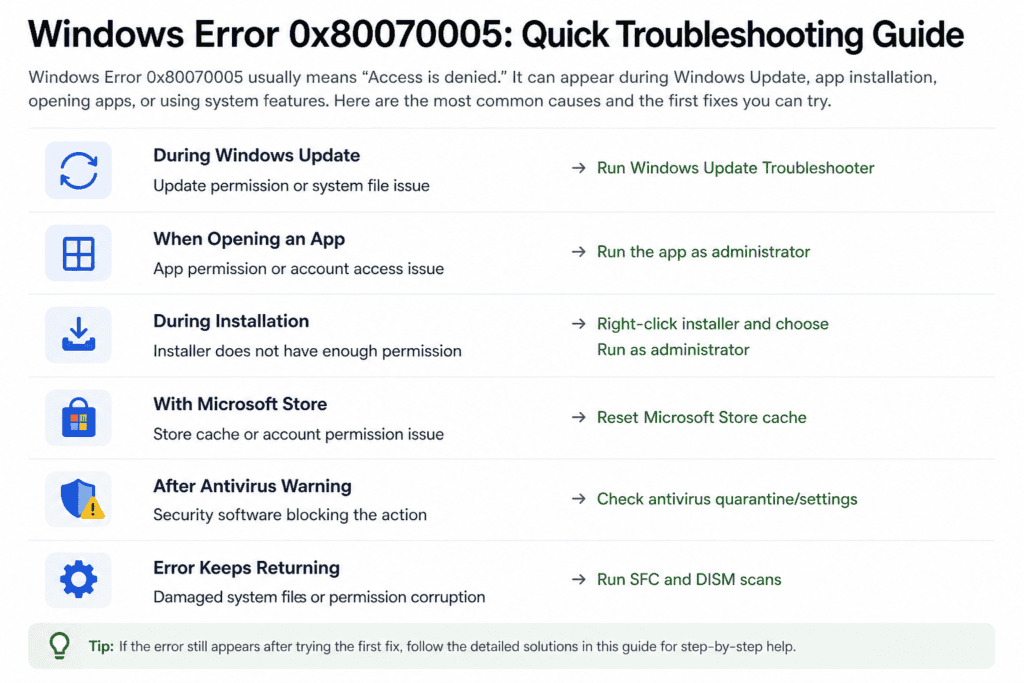
Quick Fix
Restart your computer, then run the Windows Update Troubleshooter. If the issue continues, make sure you are logged in as an administrator.
Try This First
• Error appears during update → restart your computer
• “Access Denied” message → run the tool as administrator
• Update fails repeatedly → check your internet connection
If the issue continues, follow the fixes below.
What Is Windows Error 0x80070005?
Windows error 0x80070005, also known as “Access Denied,” occurs when the system does not have the required permissions to perform a task. This can affect Windows Update, system changes, or application installations.
What Causes Error 0x80070005?
There are several reasons why error 0x80070005 may appear. The most common causes include:
- Insufficient user permissions
- Windows Update issues
- Corrupted system files
- Antivirus or security software interference
- Incorrect registry settings
In most cases, this error is related to permission or system configuration issues rather than hardware problems.
Windows Error 0x80070005 Fix: Step-by-Step Solutions
Try the following solutions one by one until the error is resolved.
Run as Administrator
- Find the app, installer, or update tool that shows Windows Error 0x80070005
- Right-click the file or program
- Select Run as administrator
- If Windows asks for permission, click Yes
- Try the action again
If the error appears while using Windows Update, make sure you are signed in to an account with administrator permissions before running the update again.
Lack of administrator permission can cause Access Denied errors because Windows may block the action from making system-level changes.
Check User Permissions
Incorrect permissions can prevent Windows from accessing files or folders.
- Right-click the affected folder
- Select Properties
- Go to the Security tab
- Click Edit
- Ensure your user has full control
If the issue is related to system access or security restrictions, follow this guide: Windows Error 0x80240034 Fix
Run Windows Update Troubleshooter
Windows includes a built-in tool to fix update-related issues.
- Go to Settings
- Select Update & Security
- Click Troubleshoot
- Choose Windows Update
- Run the troubleshooter
If updates fail due to connection issues, follow this guide: Windows 10 No Internet Access Fix
Disable Antivirus Temporarily
- Open your antivirus software
- Disable real-time protection temporarily
- Try the update again
- Re-enable antivirus afterward
Antivirus software can block updates and cause permission errors.
Run System File Checker (SFC)
Corrupted system files can trigger error 0x80070005.
- Open Command Prompt as administrator
- Type:
sfc /scannow - Press Enter
- Wait for scan to complete
- Restart your computer
This scan will automatically detect and repair corrupted system files.
If Windows errors are caused by system file issues, see this guide: Windows Error 0x8007000d Fix
Reset Windows Update Components
- Open Command Prompt as administrator
- Stop services:
net stop wuauservnet stop bits - Delete contents of:
C:\Windows\SoftwareDistribution - Restart services:
net start wuauservnet start bits
Resetting update components fixes corrupted update files.
How to Prevent Error 0x80070005 in the Future
Once the issue is fixed, you can take a few steps to reduce the chance of seeing it again.
Keeping your system updated and maintaining correct permissions can help prevent this error from returning.
- Keep Windows updated
- Avoid changing system permissions unnecessarily
- Use reliable antivirus software
- Run regular system scans
Frequently Asked Questions
What does error 0x80070005 mean?
It means “Access Denied,” indicating that Windows does not have permission to complete an action.
Can antivirus cause error 0x80070005?
Yes, some antivirus programs may block system operations and trigger this error.
Is error 0x80070005 serious?
No, it is usually a permission-related issue that can be fixed using basic troubleshooting steps.
You may also want to check our guides on Windows Error 0x80004005 Fix, Windows Error 0x80070002 Fix, Windows Error 0x80070003 Fix and Windows Error 0x80070422 Fix for broader system-related issues.