
Zoom camera not working fix steps can help when your webcam shows a black screen, Zoom says it cannot detect your camera, your video will not turn on, or other people cannot see you during a meeting.
This problem can happen because Zoom does not have camera permission, the wrong camera is selected, another app is already using the webcam, the camera driver is outdated, or your device privacy settings are blocking video access.
Start with the simple checks below before reinstalling Zoom or changing advanced camera settings.
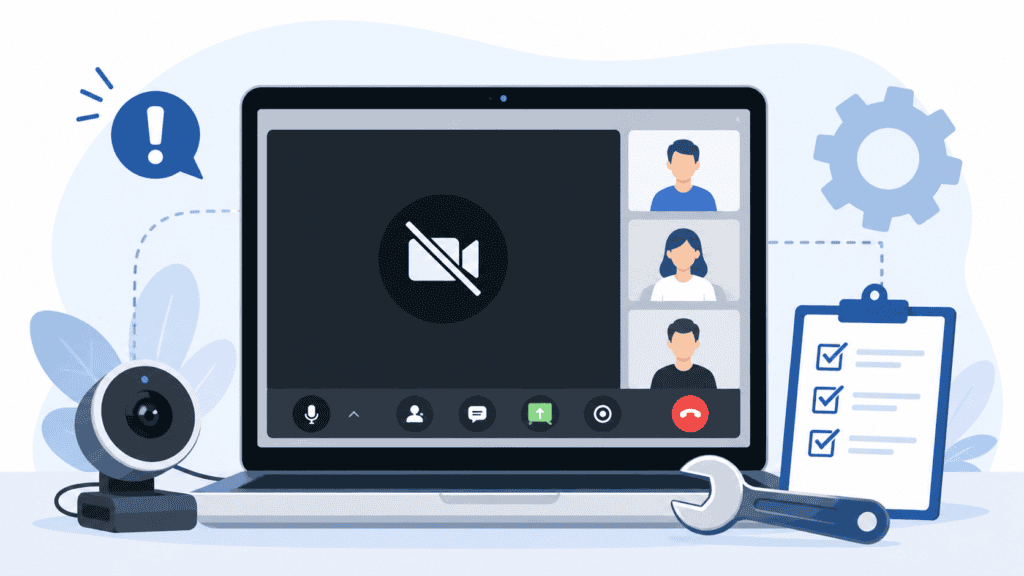
Quick Fix
Close Zoom completely, restart your device, and open Zoom again. Then check whether Zoom has camera permission, make sure the correct webcam is selected in Zoom settings, and close other apps that may already be using the camera.
Try This First
• Camera shows black screen → restart Zoom and check camera permission
• Zoom says camera not detected → select the correct camera in Zoom settings
• Camera works in other apps but not Zoom → check Zoom privacy permission
• Camera works in browser but not app → update or reinstall Zoom
• Camera works sometimes → close other apps that may be using the webcam
Why Is My Zoom Camera Not Working?
Your Zoom camera may stop working when Zoom cannot access your webcam or when another app is already using it. On Windows and mobile devices, privacy settings can also block camera access even if the webcam itself is working.
In some cases, the issue is caused by the Zoom app, a browser meeting, a camera driver, antivirus software, or a temporary device problem.
What Causes Zoom Camera Problems?
Common causes include:
• camera permission is turned off
• wrong camera selected in Zoom
• another app is using the webcam
• Zoom app is outdated
• browser camera permission is blocked
• webcam driver is outdated or damaged
• antivirus or privacy software is blocking camera access
• external webcam is disconnected
• device needs a restart
• Zoom installation is damaged
Zoom Camera Not Working Fix: Step-by-Step Solutions
Restart Zoom and Your Device
- Leave the Zoom meeting if you are currently inside one.
- Close the Zoom app completely.
- On Windows, check the taskbar and close any remaining Zoom window.
- Restart your computer, phone, or tablet.
- Open Zoom again.
- Join a test meeting or start a new meeting.
- Turn the camera on.
Restarting clears temporary camera and app problems. This is the safest first step when Zoom suddenly stops showing video.
Check Camera Permission on Windows
- Open Settings.
- Go to Privacy & security.
- Click Camera.
- Make sure Camera access is turned on.
- Make sure Let apps access your camera is turned on.
- Scroll down and allow desktop apps to access the camera.
- Open Zoom again and test video.
Zoom cannot use your webcam if Windows privacy settings block camera access. This can happen after a Windows update or privacy settings change.
If Windows access or permission problems affect other apps too, this guide may help: Windows Error 0x80070005 Fix
Select the Correct Camera in Zoom
- Open Zoom.
- Click your profile picture.
- Open Settings.
- Click Video.
- Look for the Camera dropdown.
- Select the correct webcam.
- Check whether your video preview appears.
- Join the meeting again.
Zoom may choose the wrong camera if your device has a built-in webcam, external webcam, virtual camera, or screen recording tool installed.
Close Other Apps Using the Camera
- Close apps like Teams, Skype, Discord, Google Meet, camera apps, and browser meeting tabs.
- Close any recording or streaming software.
- Restart Zoom.
- Try turning on the camera again.
Only one app may be able to use the webcam at a time. If another program is already using it, Zoom may show a black screen or camera error.
Check Camera Permission in Your Browser
If you are joining Zoom from a browser:
- Open the Zoom meeting link.
- Click the lock icon near the browser address bar.
- Find Camera permissions.
- Set camera permission to Allow.
- Refresh the page.
- Try joining the meeting again.
Browser meetings need browser-level camera permission. If the browser blocks camera access, Zoom may work in the desktop app but fail in the browser.
If meeting links or browser pages fail to load correctly, see This Site Can’t Be Reached Fix.
Update the Zoom App
- Open Zoom.
- Sign in if needed.
- Click your profile picture.
- Click Check for Updates.
- Install any available update.
- Restart Zoom.
- Test your camera again.
An outdated Zoom app can cause camera detection, video preview, and meeting compatibility problems.
If Zoom has several problems beyond the camera, start with this broader guide: Zoom Not Working Fix.
Check the External Webcam Connection
- If you use an external webcam, unplug it.
- Wait a few seconds.
- Plug it into a different USB port.
- Avoid using a loose USB hub if possible.
- Open Zoom and check Settings → Video.
- Select the external camera again.
External webcams can stop working because of a loose cable, weak USB connection, or a port that is not detecting the device correctly.
Update or Reinstall the Camera Driver
- Right-click the Start button.
- Click Device Manager.
- Expand Cameras or Imaging devices.
- Right-click your webcam.
- Click Update driver.
- Choose Search automatically for drivers.
- Restart your computer.
- Test Zoom again.
If updating does not help, you can uninstall the device from Device Manager and restart the computer. Windows will usually reinstall the camera driver automatically.
Check Antivirus or Privacy Software
- Open your antivirus or privacy/security app.
- Look for webcam protection, privacy shield, or camera blocking settings.
- Make sure Zoom is not blocked.
- Allow Zoom to access the webcam if the option appears.
- Restart Zoom and test video.
Some security programs include webcam protection. This can block Zoom even when Windows camera permission is already enabled.
Reinstall Zoom
- Close Zoom completely.
- Open Settings.
- Go to Apps.
- Find Zoom.
- Uninstall it.
- Restart your device.
- Download Zoom again from the official Zoom website or app store.
- Install it and test your camera.
Reinstalling Zoom can fix damaged app files or broken camera settings. Use this after simpler fixes do not work.
How to Prevent Zoom Camera Problems
• Keep Zoom updated
• Test your camera before important meetings
• Close other video apps before joining Zoom
• Keep Windows and webcam drivers updated
• Avoid unplugging external webcams during meetings
• Check camera permission after system updates
• Use official Zoom downloads only
Frequently Asked Questions
Why is my Zoom camera showing a black screen?
Your Zoom camera may show a black screen because Zoom does not have camera permission, the wrong camera is selected, another app is using the webcam, or the camera driver is not working correctly.
Why does Zoom say it cannot detect my camera?
Zoom may not detect your camera if the webcam is disabled, disconnected, blocked by privacy settings, used by another app, or missing the correct driver.
Why does my camera work in other apps but not Zoom?
If your camera works in other apps but not Zoom, the issue is usually Zoom permission, Zoom video settings, an outdated Zoom app, or a blocked camera setting inside security software.
For related Zoom problems, see Zoom Not Working Fix and Zoom Error Code 1132 Fix.